Software Security
All Alankar Web Solutions software — Girvi Management System, Jewellery Inventory & Billing and Pharmacy Management — is protected by a machine-locked license file. It's a simple rule: the software reads a unique fingerprint of your computer and checks it against your license file before anything else loads — no internet connection needed, at login or otherwise.
The software checks your license file against this computer's unique fingerprint, confirms it's valid and current, and takes you straight to the homepage — ready to work, fully offline.
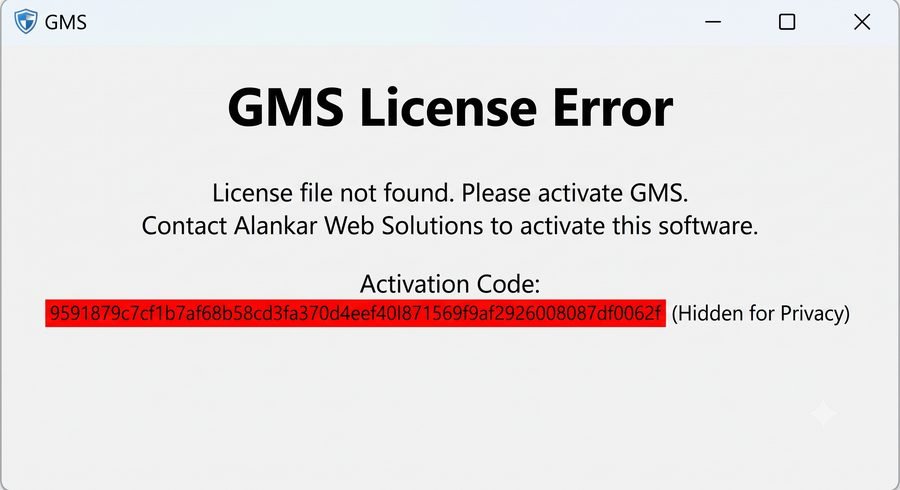
If the license file is missing, doesn't match this machine, or a subscription has expired, the software stops right there with a License Error screen and an Activation Code — it does not open any further screen.
How it works
The check runs at the moment the software opens, entirely on your own computer — so your day-to-day work stays as fast and offline-first as always, once you're in.
Launch the Alankar software on your PC — no internet connection required for this check, at any point.
The software reads a unique fingerprint of this exact computer's hardware — this is what your license file is locked to.
Your license file is verified against that fingerprint, and checked for tampering and (for Subscription plans) expiry — all done locally, on your machine.
Verified → your homepage loads and you work as usual. Not verified → a GMS License Error screen appears with your Activation Code, and the software doesn't open any further.
Before you open the software
Your license file is locked to the one machine it was issued for. Reinstalling on the same computer is fine — moving to a new PC needs a fresh Activation Code and license file from us.
The license file we send you needs to sit in your GMS folder, exactly as instructed when you received it — don't rename, move it out, or edit it.
Your license should be current and in good standing. If a Subscription term has lapsed or needs renewal, reach out to us before it affects your login.
Why we do this
It ensures only genuine, properly licensed software runs on your systems — protecting the product you paid for.
A verified license is how we know exactly which shop, product and setup we're supporting when you call or message us.
Verification happens the moment the software opens, entirely offline — after that, the software runs the same offline-first way it always has, all day long.
FAQs
No. The whole check runs locally on your computer, using your license file and this machine's fingerprint — no internet connection is needed at any point, including the very first activation message you send us.
It's a unique fingerprint of your computer, shown on the GMS License Error screen. Send it to us on WhatsApp and we'll generate a license file that matches it, sent back to you the same day.
Copy the Activation Code shown on screen and message it to us on WhatsApp along with your name and shop name — we'll confirm your license status and send you a working license file.
No — each license file is locked to one specific computer's fingerprint and won't work on another machine. If you need to move to a new PC, contact us with the new machine's Activation Code and we'll issue a fresh license file.
Message us on WhatsApp or call — we'll check your license status and get your software verified and working again.
 Alankar Web Solutions